
13 New Canva Features You Need To Know About
Last updated on 26 March 2025
This post may contain affiliate links. If you make a purchase with one of these links, I recieve a small commission at no additional cost to you. Read the full Affiliate Policy.

Did you hear? Canva is the best. I could leave this blog post here and call it a day. But that’s not too helpful. But Canva is releasing new features left, right and centre and they are fire, let me let you! In this blog post, we’re going to take a look at a bunch of new Canva features that you need to know about and get on board with.
So let’s just dive straight into it.
New Canva Features
- Translation inside Canva
- Beat Sync your videos and audio
- Gradient Tool
- Brand Hub
- Magic Design
- Magic Eraser
- Magic Edit
- Magic Presentation
- Pinning Folders
- Animation
- Layers
- Position Panel
- Alt Text


Translation inside Canva
Canva can translate things now. Yup! If you’re creating a design in multiple languages, or you need to change it from one language to another, you can do that straight in Canva now! Simply click the text you want to translate, navigate to Translate on the far left menu, tweak the settings and include ‘Translate From” and “Translate To” and voila! There are over 100 languages to choose from, too.
Beat Sync your videos and audio
Making videos on Canva? You can now beat-sync your videos and audio! Select or upload a music or audio track you want to use, and then with the Beat Sync feature, you can perfectly match up your beat! If this ain’t a lifesaver and a time saver, I don’t know what is! This is going to be great for video content creators and might even have me making more videos!
Gradient Tool
How many times have you wanted to use a gradient but can’t find the perfect pre-made one in Elements? Probably a lot, right? Right. Well, now you can create your gradients right there in Canva! Choose the colours that you want to gradient between, and the type of gradient you want (top to bottom, diagonal, from the centre etc) and you’ve got a pretty sweet gradient to work with!

Brand Hub
Calling all team members! The Canva Brand Hub is here! This Brand Hub means that you can put everything you need for your brand in one place, and ensure that your team members are actually using on-brand fonts, colours, photos, and elements. You can create and save templates into the BRand Hub, as well as add your logos, projects and videos.
Magic Design
Just like the Magic Write feature that came out in 2022, Canva is releasing a bunch more ‘Magic’ features. Magic Design is truly magical. Upload an image, select a style and see it work its magic! With Canva Magic Design you’ll be speeding through your design process; it takes your humble beginning and then chooses fonts, images, graphics and styles to transform your design into something epic. I’m definitely having fun playing around with it!
Magic Eraser
I love the Magic Eraser, and it’s definitely one of my favourite new Canva features. I’ve used it so much already and it is beyond helpful! Here’s how it works: You know when you find an image that you LVOE and you really want to use it in a design, but there are just one or two parts of the image that you’re not loving or you find it’s in the way of your text or other elements? Happens to me when I’m creating Pinterest Pins all the time!
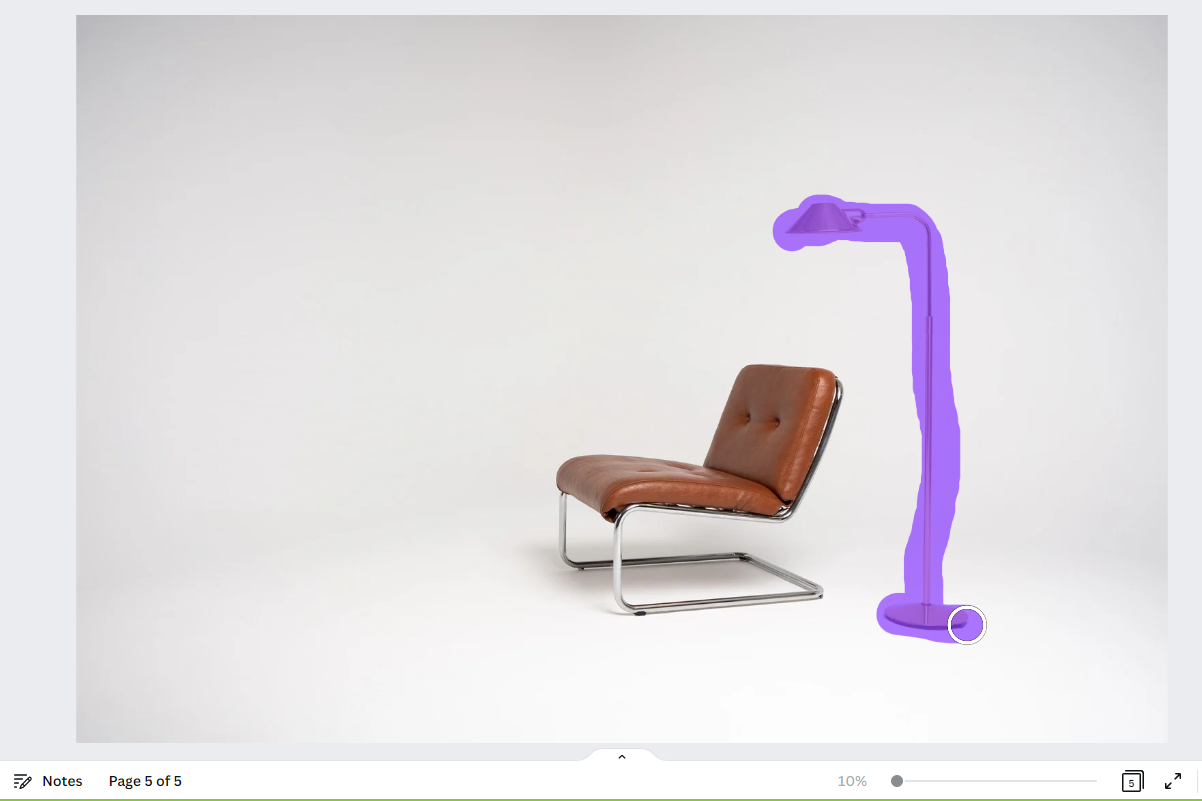
With Magic Eraser you can paint over the top of the part of the image you no longer want, and Canva will Magically Erase (surprise surprise) the thing! Remove unwanted parts of your image in a SNAP. Genius.
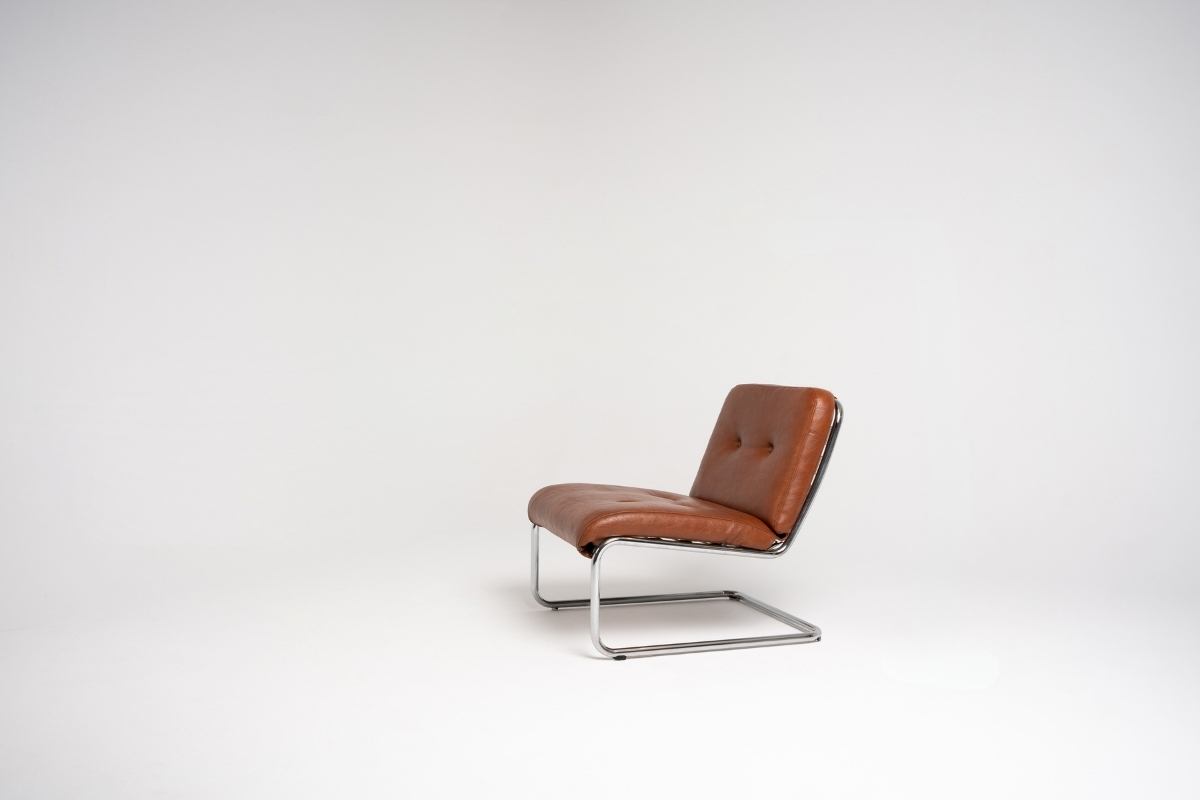
Let’s say I don’t actually want this lamp in the image below. I can use the eraser tool on Canva to paint over it, and it will magically disappear!
Magic Edit
In a similar vein, Magic Edit is just amazing. With Magic Edit on Canva, you can paint over a certain part of your image and have it replace that part of the image with someone completely different.
If you have a photo like the one below, and you don’t want that disco ball in there, you can paint over it, and tell Canva what you’d like to replace it with. It will then give you a few options, or you can regenerate what it comes up with. And then hey presto! I’ve replaced the Discoball with a beach ball!


Magic Presentation
Just as magical, the new Canva Magic Presentation feature means you can quickly create presentations in Canva that are exactly what you want and in a theme that you want. Quick, easy, and so time-saving. Some examples of what you could ask Canva to make for you:
- Benefits of blogging for business
- Travel tips for solo adventurers
- House plants for people who can’t keep a cactus alive
- The importance of outsourcing in your business
Whatever you’re wanting to create your presentation on, you can get Magic Presentation to help you out. Of course, you can still tweak whatever it spits out, but it’s such a great starting place!
Pinning Folders
Oh my goodness, the number of times I’ve been scrolling through my folders on Canva, trying to find the one I want (especially if I haven’t labelled it very well!) … countless! But the new Pinnin FOlders feature on Canva allows you to pin folders to the top of another folder. This means those folders that you are constantly in and using, you can pop them right at the top, making access to those folders easier and faster.
Animation
Oh hello, fun animations! This new Canva feature is so much fun! Add a little something-something, a little wiggle, and a little movement to your designs with the new animation feature. Draw a path that you want your element to take, speed it up, slow it down … and watch it move!
There are so many ways you could use this feature on Canva to make your designs pop!
- Use it in presentations for added fun
- Try it out for your social media posts
- Draw attention to certain parts of your graphic
- Add extra layers of animation to your videos
- Play with different speeds and paths
💡 Click here to see this in action!
Layers
If you’ve ‘arghed’ in frustration because you SEE a layer you need to get to but don’t know WHERE it is in relation to the other layers … this new Canva feature is for you. Finally, we have the ability to see a list of all the elements, text, graphics and images and where they sit positioned on the design … all in one handy place.

When you click on any element on your design, select ‘Position’ at the top o menu, and then in the left menu you’ll be able to see a tab that says ‘Layers. Once you click that, you’ll see all the layers of all the things and you’re able to click and drag them, bringing some to the top and others to the bottom.
I have been using this new feature on Canva for every single design I’ve created since it came out because that’s just how much we all needed it. I am SO stoked that this one is finally here!
Position Panel
As well as the movable layers, in the Position Panel you can also find the Arrange tab, which allows you to easily move the elements forward, backwards, to front and to back, as we could before. But it also allows you to set the specific width, and height, adjust the ratio, as well as play with X and Y axis and rotate it to a specific angle. You’ll also see in that Arrange panel that you can Align the element to the top, middle bottom, left, centre and right of the page.

Alt Text
You already know about the importance of Alt text on some of your blog images, and we talk about it on Instagram, too, but now you can Alt text to your designs. Add descriptions of what’s happening in the design to provide extra context for usability, and also for SEO-friendly metadata.
So, tell me! What do you think of these incredible new Canva features!? Does it make you want to dive in there and get creating? Because that’s exactly what I want to do every time I see new features!
Let me know in the comments which of these you can’t wait to try out!

Anjali Kay
Anjali Kay is an Aotearoa New Zealand-based blogger and book lover sharing travel inspiration, bookish posts, the occasional creative project, and a lot of practical blogging tips here at This Splendid Shambles. Based in Auckland, she's been writing book reviews and travel posts, sharing creative projects and blogging tips since she started her first blog in 2009. When she's not working on her own blog, Anjali also offers blog coaching and support for bloggers who want real guidance from someone who's actually done the work, and is a few chapters ahead of them.


Having fun? Check out these posts!

The BoMoSh | Books, Movies, Shows | September 2017

7 Mistakes You’re Making Trying to Grow your Pinterest Account
