
5 Canva Updates You Need to Know About 2023
Last updated on 26 March 2025
This post may contain affiliate links. If you make a purchase with one of these links, I recieve a small commission at no additional cost to you. Read the full Affiliate Policy.

I don’t know about you, but I love it when Canva updates its features. There are so many things you can do on Canva already, and everything is super useful for bloggers, creatives, designers, and template makers… you name it. But when they go ahead and continue to update their features, you know you’ve found yourself a great company that values and listens to its users.
There have been so many updates to Canva in the last wee while and a whole lot of brand new features have been added both to Free Canva and to Canva Pro. But in this post, I wanted to take a look at some of the Canva updates that we already had and see how they’ve made them even better. These updates help us as creators and users of the platform create even better designs and do so more efficiently and effectively (which we LOVE!).
5 Canva Updates to Check Out
- Draw Tool update
- Image Editor update
- Magic Write Update
- Text to Image update
- Font updates

Draw Tool Updates
Last year, Canva released Draw, a tool which throws back to the good ol’ days of Paint. I wrote a blog post about how to use the Canva Draw tool, so be sure to head on over to that post to learn all about it.
The updates to Draw are pretty cool and are going to be really handy when it comes to using it. The updates are namely that when you’re using the tool, Canva will now recognise what you’re trying to draw and smooth out your lines (great news if you’re a little shaky with the mouse movements like I am!).
You can also use the Draw tool on any design, and when you do so, it becomes a layer that you can move around the page if you need to. Again, great if you didn’t quite get your pen in the right place to begin with.
There are a bunch of different pen tools and an eraser tool, so have a play and see how you can make really unique and customised designs with the Canva Draw tool.
👉🏻 Coming Soon: The ability to add your drawing or sketch to your elements collection, so you can re-use your own drawing!
Image Editor update
When you add an image to your Canva design, there have in the past been a bunch of different edits you can make. In the updates recently, there have been some changes to the Edit function and what it can do. Much of it is the same, but there are some updates to some of the tools inside the editor.
For example, now you can choose which part of the image you’d like to edit (whole image, foreground or background), you have the option to auto-adjust the image and have access to the new Magic Eraser and Magic Editor tools right there (alongside the Background Remover tool).
My favourite update within the Image Editor is simply being able to quickly adjust things straight from a tab, rather than going into another area to do the same thing. It’s faster and easier to access, making designing a breeze.


Magic Write Canva Updates
In 2022, Canva released Magic Write, an AI content generator that helps you write … well, whatever you want, really! You can read all about Magic Write here. In 2023, there has been an update!
Originally, you could only use Magic Write on a new Docs feature. This was still a really neat feature, but now they’ve taken it a step further. You can use Magic Write on any design, right across Canva!
I think this is super cool because it means that, if you’re one to use Magic Write quite a bit, you don’t have to have a Docs design open for getting your Magic Write words together and then copying and pasting it across to your design. You can use the AI tool right there in your presentation, your Instagram post, your blog post graphic, your templates… wherever!
Magic Write is also available in 18 different languages (as of April 2023).


In this example above, I click the image, and then the Sparkle icon in the bottom right. Then I select Magic Write and gave it a prompt. Then I just edited the prompt and gave it a background of pink. Easy!
Text to Image update
Text to Image in Canva was released at the end of 2022, and while it’s only been around a few months at the writing of this blog post, Canva has already updated it to ensure it’s working the best way it possibly can for us, its users.
If you haven’t used Text to Image yet in Canva, basically it worked(and still works, for the most part) was like this:
- When you’re in a design, on the left-hand panel, you can search for Text to Image
- Next you describe the image you want it to create for you
- Next you choose a style – Suprise Me, Photo, Drawing, 3D, Painting, Pattern or Concept Art
- Then select ‘Generate Image’ and watch as Canva comes up with a bunch of options based on your search query
So what’s been updated then?


The tool has been updated to ensure that the highest quality images and graphics are produced when a user inputs their requests, and they’ve updated the speed, which means you can get your custom images that much faster.
The Text to Image update also includes a new way to explore the different styles of images. You can now choose between:
- Photography
- Photo
- Vibrant
- Minimalist
- Neon
- Filmic
- Digital Art
- Colourful
- 3D
- Retrowave
- Psychedelic
- 3D Model
- Concept Art
- Gradient
- Retro Anime
- Dreamlike
- Anime
- Fine Art
- Watercolour
- Colour pencil
- Stained Glass
- Ink Print
That’s a whole lot more styles to choose from! Have a play with it; it’s really fun to see what it can create.
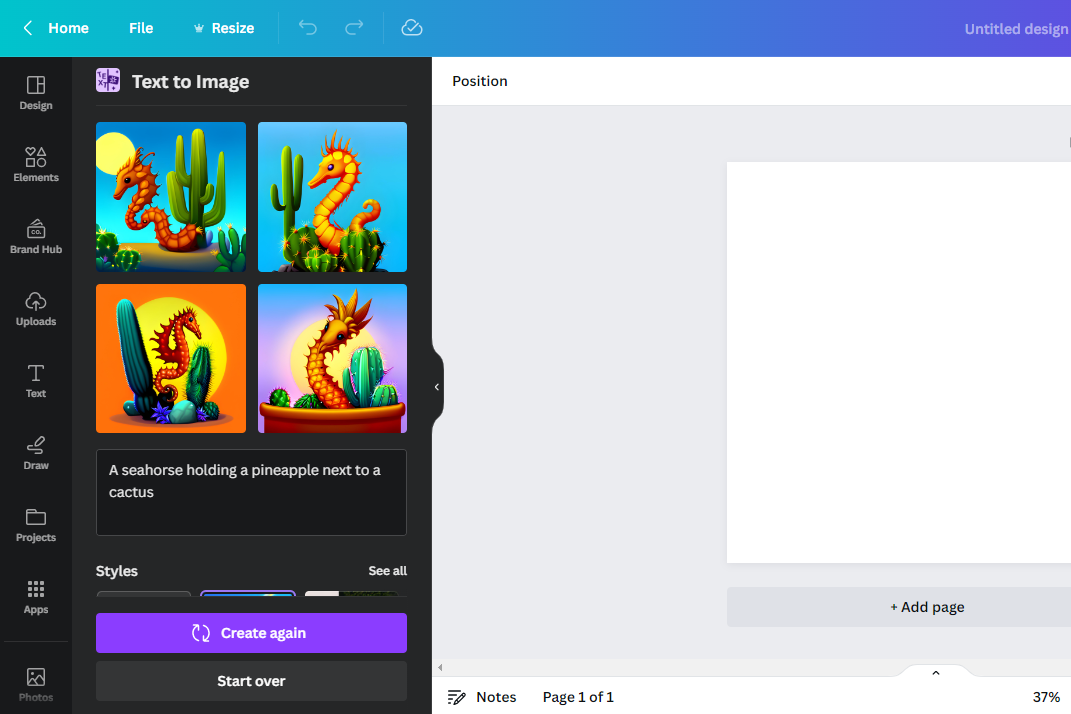
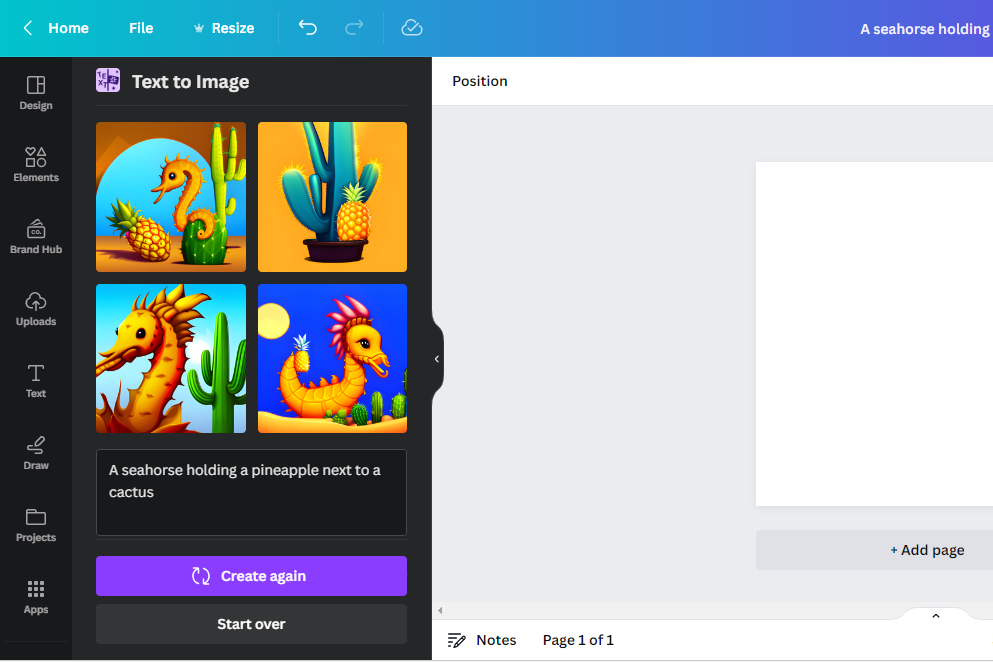
For this example above, I used the prompt “A seahorse holding a pineapple next to a cactus” and the Dreamlike image style. The first 4 options (first image) it gave me were pretty good, but they didn’t really include the ‘holding a pineapple’ part of the prompt (though to be fair, seahorses don’t have arms so that’s probably on me). They were all pineapple coloured though and gave pineapple vibes.
I tried again and clicked the ‘Create Again’ button and it gave me some more options, two of which were more accurate to the prompt (second image, top left-hand picture and bottom right-hand picture).
👉🏻 Tip: Try tweaking your prompt if it’s not quite what you wanted. And have a play with the ‘Create Again’ button, and the different styles to see what you can get.
Font updates
New fonts are coming! Of course, there are hundreds of fonts already in Canva, both Free to access and in the Pro version, but Canva has partnered with Monotype and has added over 900 of the world’s most popular Latin fonts (woohoo!) and over 190 non-Latin fonts.
This is super exciting because it means more fonts to play with, design with, and waste time scrolling through. I jest with the last one, though I don’t know about you, but I for one get a little bit font-decision-paralysis and tend to just stick to my favourites. But hey! Maybe a new fave is in the updated font list!
Conclusion
Those are just 5 of the updates from Canva that they’ve provided in the last few months, and of course, there are many more brand-new features that they’ve launched too.
I’m always so impressed at how many tweaks and updates Canva is making all the time. They really listen to their users and figure out what tools and features are really going to help their subscribers create the most efficiently and in the most creative way. I’ve found that all the tools help me be more creative in what I’m designing, and that’s one of the things I love about Canva: they’re an easy-to-use tool that wants to help you be creative. How good is that?!
I wanna know though: have you used any of these tools recently? What do you think of these Canva updates?

Anjali Kay
Anjali Kay is an Aotearoa New Zealand-based blogger and book lover sharing travel inspiration, bookish posts, the occasional creative project, and a lot of practical blogging tips here at This Splendid Shambles. Based in Auckland, she's been writing book reviews and travel posts, sharing creative projects and blogging tips since she started her first blog in 2009. When she's not working on her own blog, Anjali also offers blog coaching and support for bloggers who want real guidance from someone who's actually done the work, and is a few chapters ahead of them.


Having fun? Check out these posts!

An Honest Look at my Work Space

How to Repurpose Blog Posts for Instagram
