

Why You Should Be Using Pinterest Idea Pins
Last updated on 4 November 2024
This post may contain affiliate links. If you make a purchase with one of these links, I recieve a small commission at no additional cost to you. Read the full Affiliate Policy.

Note: Pinterest Idea Pins didn’t last long. In 2023 they were updated to just be another type of Pin. You can, however, still learn about Pinterest Ideas Pins below, as some people still have access to some of the features.
Pinterest Idea Pins are the new kids on the block!
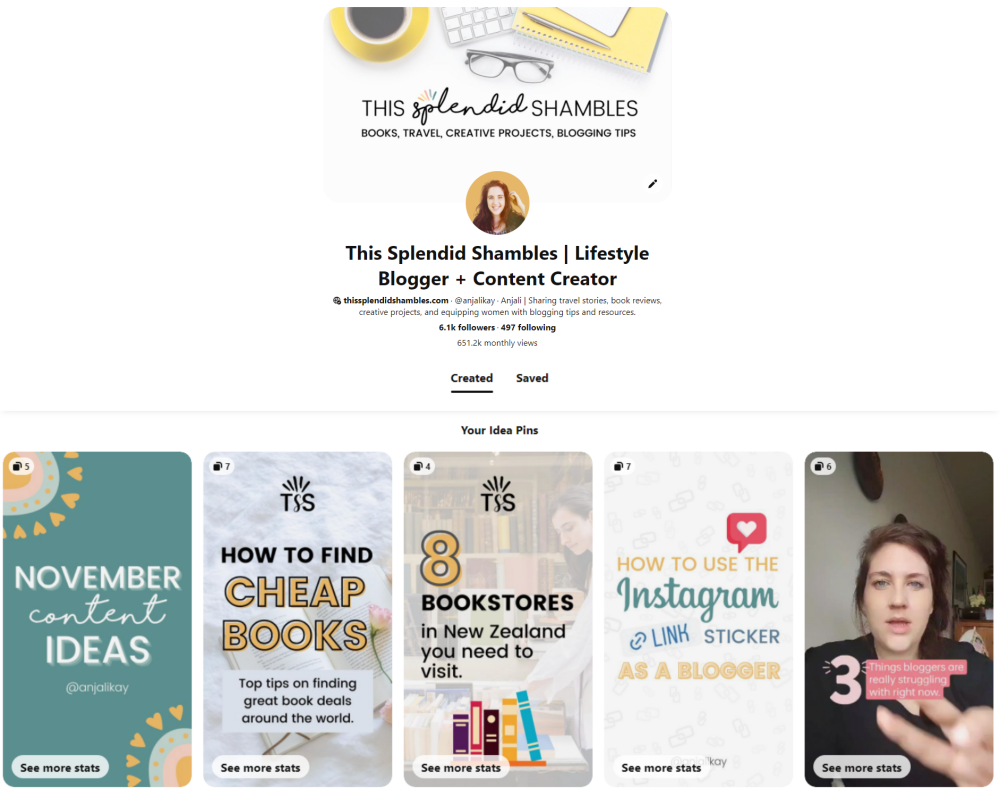
In 2021, Pinterest launched Idea Pins. Taking a form similar to Instagram Stories, but with the potential reach like Instagram Reels, Pinterest Idea Pins are an incredible way to expand your reach on the platform and bring in new followers.
With all the hype surrounding Idea Pins on Pinterest, I thought it would be a great opportunity to do a bit of an experiment.
I knew that posting Idea Pins on Pinterest was going to have a great outcome for my account and for my blog, but I wanted to test it out for myself and see what happened.
I set myself a 30-Days of Pinterest Idea Pins challenge.
For 30 days I was going to post a fresh Idea Pin and see what happened. I was particularly interested in how my followers grew on the platform, how far the reach of my account got, and most importantly if posting Idea Pins was going to up my Outbound Clicks (which is, in my opinion, the most important Pinterest metric to be measuring).
Before we get into the challenge and the results, let’s just go over a few things first.

What is a Pinterest Idea Pin?
A Pinterest Idea Pin is a multi-slide carousel containing photos and videos. You can upload either videos or static pages (20 per Idea Pin) and create a slide-like experience for your viewers. Pinterest is pushing Idea Pins at the moment, so we’re going to look at why you should be creating them in this post.
While you can’t include an outbound link on your Idea Pin (other than an Amazon Affiliate link if you’re tagging products in your Idea Pin), the scope for reach is vast, as they’re still shiny and new and Pinterest is really pushing them.
How do I create a Pinterest Idea Pin?
Creating an Idea Pin is easy and there are two ways you can do it:
- Create your graphics and videos for your slide and upload them
- Upload a base image and use the Pinterest Idea Pin creator to add your text
- See how below!
Creating your own graphics
- Use a tool like Canva to create 1 – 20 slides that describe, show, educate, or entertain your audience on something.
- Each slide can either be a static image or a video, which means you can mix up your Idea Pin content.
Using the Pinterest Idea Pin creator
- You still need to have images or videos on hand, but you can upload as you would above.
- Then use Pineterst’s tools to add text to each slide.
There’s no right way to create an Idea Pin, but you’ll soon discover which way is best for you.

Where do I upload a Pinterest Idea Pin?
Publish a Pinterest Idea Pin on desktop
- Head to your account
- Click ‘Create’ in the top left menu
- Select Idea Pin
- You’ll then be prompted to drag and drop or click and select the images you’d like to create
- Arrange them into the order you’d like and adjust them to fit the Pin size (or add your text and change the background if you’re using the Pinterest tool to add words)
- Add a title, a Board to post it to, and tag your keywords
- You can also Add a List – Ingredients, Supplies or Notes – which gives your audience more information about the Idea Pin
- When you’re ready, hit publish! Or click the X in the top left and it will be saved as a draft to come back to later
- (See how to upload via mobile below!)
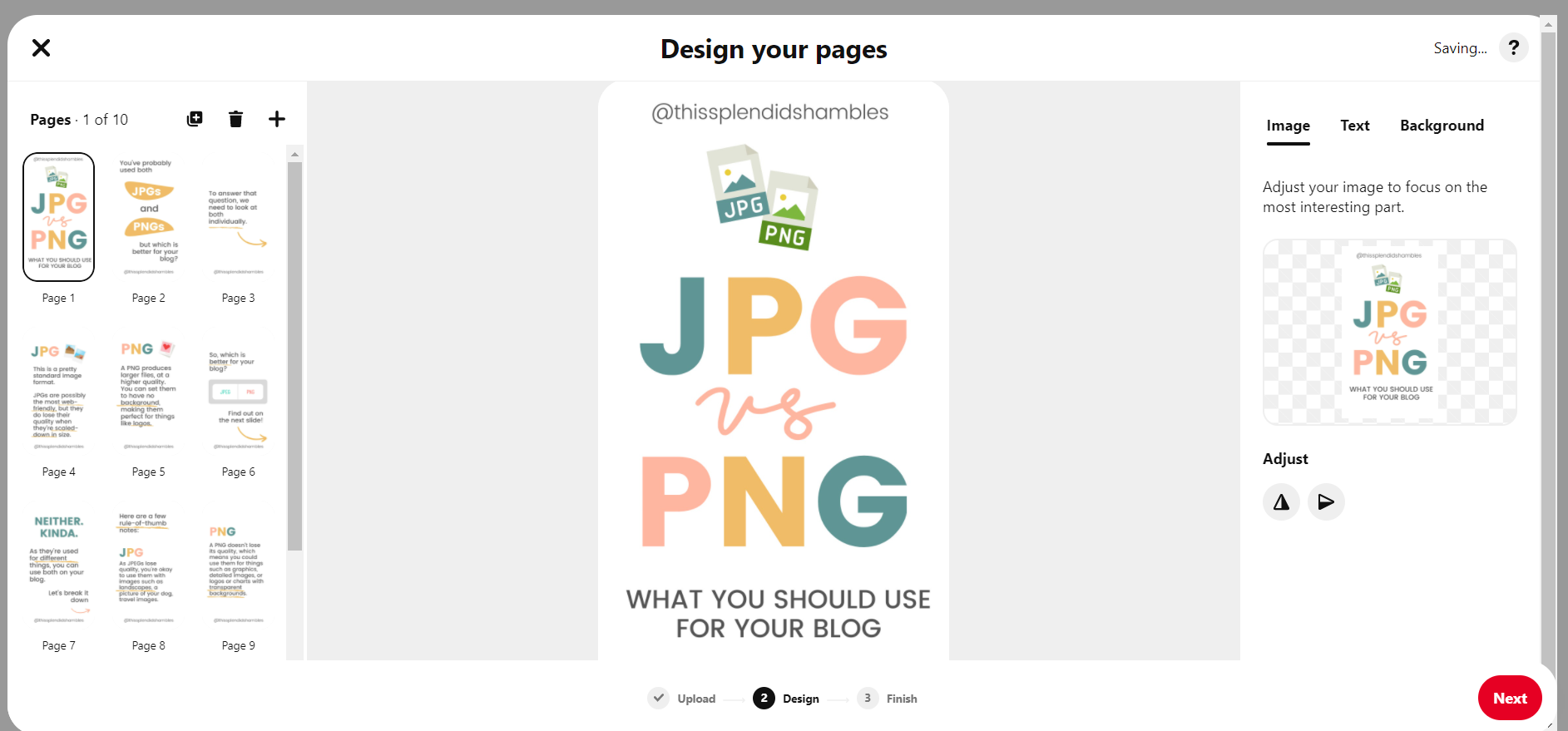
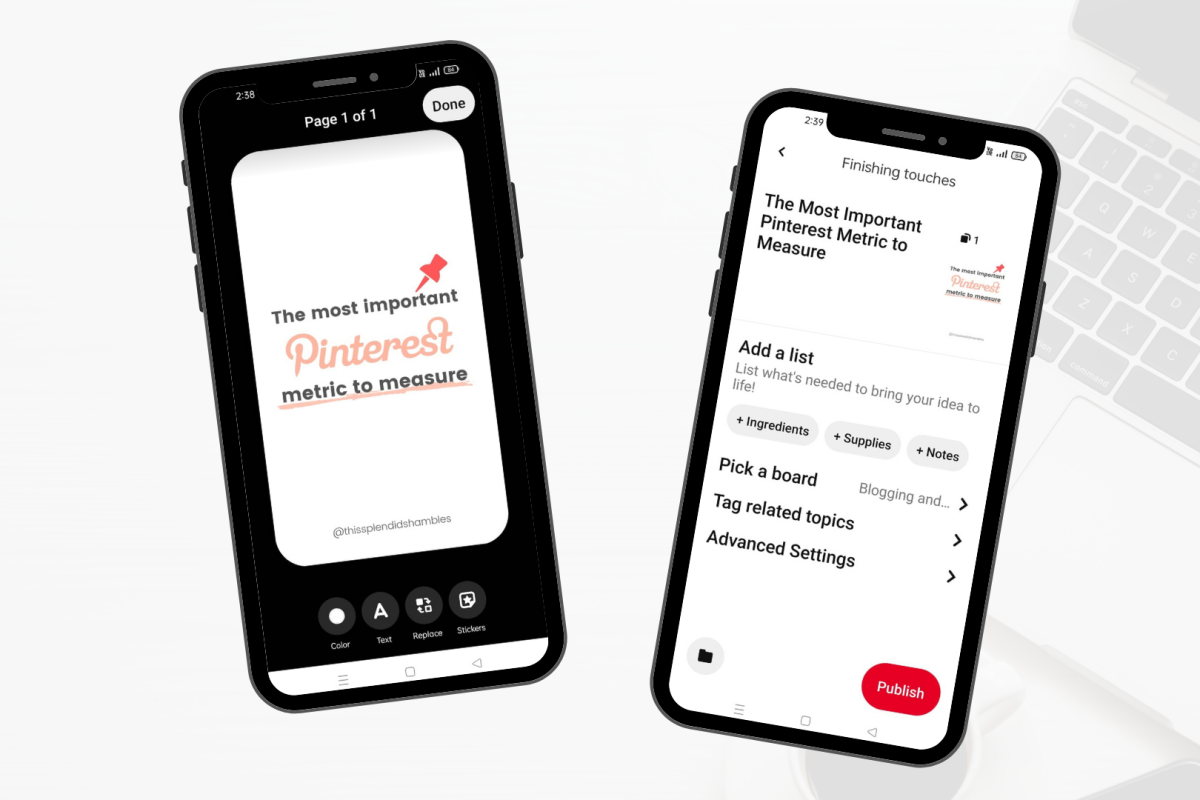
Publish a Pinterest Idea Pin on Mobile
- Open your Pinterest app
- Click the Plus button at the bottom
- Choose Idea Pin
- Upload your images and/or videos from your phone
- You can change the colour, add text, replace media, and add stickers to your Idea Pin
- Click Done when it’s finished
- You’ll be able to Preview, Delete, Duplicate or Add another page.
- Choose Next
- Add your title, Board, tag related topics and include a list of Ingredients, Supplies or Notes like you would on desktop
- Then hit Publish!
- (See how to upload via desktop above!)
What is the 30-Day Pinterest Idea Pin challenge?
The 30-day Pinterest Idea Pin challenge is where you post an Idea Pin every day for 30 days. It allows you to see what impact the Idea Pins have on your blog or website. Here’s a rundown of how it went.
Full disclosure: I did not post every single day. That proved to be a little tricky. But I posted 24 Idea Pins over the course of the month, and now have 48 Idea Pins on my Pinterest account, all still growing in views.
Each Idea Pin I tracked and noted how it was doing 1 week after I posted it. Then each week on Monday I made note of bigger metrics, such as followers, impressions, views, clicks etc.
Below are two screenshots of the overview analytics. They’re both snapshots for 30 days prior to the date indicated.
You’ll notice that green arrows actually look pretty similar in per cent increase, but the numbers are a lot higher. It’s taking the per cent of the last 30 days, which means I was already growing in September.
As of September 27th:

As of November 1st:

What do Pinterest Analytics mean?
If you’re not used to Pinterest analytics, then let me quickly break it down for you:
- Impressions: The number of times Pins were seen on a screen
- Engagements: Totally number of clicks and saves
- Total audience: Total number of Pinners who have seen and/or engaged with your Pins
- Engaged audience: The number of Pinners who engaged with your content
As you can see, in September’s stats they were already on the up compared to 30 days prior.
In October, those numbers went up again, during the time I was publishing Idea Pins near-daily. But it’s not actually these numbers that I’m interested in.
The numbers here have definitely gone up with Idea Pins, and while Idea Pins can’t have a clickable outbound link attached them to, they increase your reach, and Pinners discover your account and check out more that you’ve Pinned.
These numbers, however, do just tell us what’s happening on Pinterest, and not what’s happening on my blog or where I’m sending people through my Pins.
Outbound Clicks on Pinterest and why they’re important
The real numbers we want to look at are Outbound Clicks. These are the number of clicks away from Pinterest that your Pins have had. They’re the people landing on your blog or website page, or viewing your social media or shop pages.
As Idea Pins don’t have that link (unless you’re an Amazon Affiliate), we’re relying on the Idea Pins to spread the word that we exist (much like IG Reels). The more people know about your Pins and interact with them, the more likely they’ll see out other Pins too, or follow along.
Over the course of the month, my Outbound Clicks increased by 45.46%.
45.46%!!! 😱😱😱
That’s pretty incredible!
Was all of that increase due to Idea Pins? Maybe, maybe not.
Perhaps it was the content I was Pinning at the time people were looking for it, perhaps it’s just good content (😉) but whatever the reason, this is what I know:
- Idea Pins increase your reach.
- Idea Pins help your name get out there.
- Idea Pins provide exposure.
So, what now with Pinterest Idea Pins?
Well, now I continue to make Idea Pins! I won’t be posting them every single day, but I will be thinking about new ways to use Idea Pins for my blog and my business going forward.
Do you use Pinterest Idea Pins? If not, why not?


Anjali Kay
Anjali Kay is an Aotearoa New Zealand-based blogger and book lover sharing travel inspiration, bookish posts, the occasional creative project, and a lot of practical blogging tips here at This Splendid Shambles. Based in Auckland, she's been writing book reviews and travel posts, sharing creative projects and blogging tips since she started her first blog in 2009. When she's not working on her own blog, Anjali also offers blog coaching and support for bloggers who want real guidance from someone who's actually done the work, and is a few chapters ahead of them.


Having fun? Check out these posts!

The Life and Times of Snapchat

A Step-by-Step Guide to Using Canva Docs
