
Google Search Console Properties Adds Social Media – What This Means For You
Last updated on 7 August 2026
This post may contain affiliate links. If you make a purchase with one of these links, I recieve a small commission at no additional cost to you. Read the full Affiliate Policy.

In July 2026, Google Search Console added the ability to connect your social media accounts – Instagram, TikTok, X, and YouTube – as properties. That means you can now see exactly how people are finding your social content through Google Search, including which posts are getting clicks, what search terms brought them there, and how those numbers change over time.
This is great news for us bloggers, because it means that we’re going to be able to see when people find our social media content when they search for something on Google.
Let’s break it down a bit more, and I’ll let you know why I think this is a great move and why you should connect your socials asap.
What is Google Search Console?
Google Search Console is a tool that shows you how much traffic your blog or your website is getting from Google*. It also displays how people are searching and what keywords they’re using so you can see how they find your content.
Google Search Console is a free tool that shows you how your content performs in Google Search – which posts get clicks, what search terms people used, and where your audience is coming from.
Till July 2026, you’ve only been able to add websites/blogs.
* This is JUST from Google. While Google Analytics will show you where you’re getting ALL traffic from (from across different search engines, like Bing, AI like ChatGPT, Claude etc), GSC just shows you from Google. So this isn’t a list of every single click you’ve got, just the ones that have come directly from a GOOGLE search. Okay as you were …
What are properties in Google Search Console?
Properties in Google Search Console are the online platforms you own or manage. So if you have a blog and a separate business website, those are two different properties. With the July 2026 update, social media accounts can now be properties too.
You claim your Properties on Google Search Console by essentially logging into those platforms through GSC, so Google know that you really do own that platform. Then once that is all connected up, you can see the traffic coming from Google to those places.
What changed with Google Search Console properties in 2026?
In July 2026, Google rolled out a new feature within Google Search Console. You can now add some social media to your GSC:
- TikTok
- X
- YouTube
What this means is that you can add your Instagram accounts, your TikToks, wherever you create content in these four platforms, and see how people are finding your content on those platforms.
For example, if you’re doing a Google search and one of your top results is an Instagram Reel, and you click that, Google Search Console will log that away, and also what search terms you used to get there.
Read more about the Google Search Console Property rollout.
Pause before we continue
Just to note a few things before we get into this: I’m talking mostly about the Google Search Results in this blog post, but the data in GSC also covers Discover and Google News.
What the social media properties update means for bloggers
So what do these new Google Search Console Properties mean for bloggers and business owners?
Even though we’d probably love to be focusing all our energy on our blogs and not bother with socials, this is actually a really great move for us. We all have social media, whether we love it or hate it or hate to love it, and having the option to add our platforms to GSC is going to mean a few things for us:
- Social SEO is now officially on Google’s radar
- Which platforms are you doing well on – and which ones aren’t pulling their weight?
- What keywords are working on your social platforms
- Reaching new audiences who aren’t on your socials
- Using the data to find repurposing opportunities
Let’s go through these in a little bit more detail now.
Social SEO is now officially on Google’s radar
Okay so it has been for a while. Buuuut this change to GSC Properties just solidifies the fact that SEO is a) everywhere, b) still alive and well and c) actually being taken seriously. It’s being recognised by Google as something that is prevalent across the internet.
Now, I’m not a Search Engine Optimisation (SEO) expert, but I have been in this blogging space a long time now. But it has really been just that: optimisation for search engines. Search engines like Google, Bing, Ask Jeeves (ha), and less so about other places online.
But over the last decade, as social media and the online world have simply grown, and the way that we use said online world has changed so much, more and more people aren’t turning to places like Google for their answers.
How many times have you gone straight to TikTok to find a product recommendation? Or to find out information about something?
How did you find that information? You used search terms; you used words that were directly related to the topic or the thing you were trying to find out more info on.
And if you find a creator who has got a video showcasing the exact product you’re looking for … That post/video has been optimised for search engines. Whether they know it or not. They’ve use specific words in their videos, captions, and profiles that allow you to find them.
That’s SEO.
And we’ll get to what this means for you as a blogger soon, but I just want to point out: while this isn’t new, per se, we’ve seen things like hashtags become less important on Instagram and keywords and phrases inside captions become more important, for example. Little things like this over the last decade, and now with AI in the mix too, have altered how we search and where we search.
Having the ability to add social media to Google Search Console is a clear signal from Google that SEO isn’t just for websites anymore – it’s for every platform where you create content.
Which platforms are you doing well on – and which ones aren’t pulling their weight?
Another good thing about the new GSC Property additions is that we’re going to see which social media posts are doing well but also which platforms we’re doing well on, too.
If I’m looking at my TikTok (okay, let’s not though, yeah? 🙈), I might see that while yes, someone found my account via Google through this search term and this video … the same video was found a lot more times on Instagram. Or perhaps Instagram in general is getting more hits from Google than TikTok.
Perhaps we need to double down on TikTok a bit more, or we accept the fact that it’s just our secondary platform and that Instagram is actually where we’re getting the views from.
It’s interesting to see both the platforms that we’re thriving on (or at least doing well on) and the ones where we maybe need to rethink some things.
What keywords are working on those platforms
I love seeing which keywords are bringing people into my blog, and so as the months go by (it’s early August 2026 at the writing of this blog post initially), I’m going to be really interested in how people are finding my social media through Google.
I’m keen to see the keywords they’re using, and if those keywords are the same or very similar to the blog post version of that social media post, or if those keywords are ones that I actually purposefully thought about and put into my post or if it was more of a happy accident that they found my video.
Reaching new audiences who aren’t on your socials
This is a biggy! While yes, platforms like Pinterest have come up on Google Search Results for years now, and YouTube, too, more and more we’re seeing Instagram, TikTok, X, Threads etc in those search results. And they’re usually shown right at the top too.
I think this means that, going forward, if we’re thinking more about keywords and how people are finding out social media online, then we’re going to be reaching more people than we have been before, simply because people who might not be on Instagram every day might find a video from a search they’ve done on Google and then click through.
While this point is more a comment about how we’re using search engines as a whole, I think having our platforms connected to GSC is going to be really eye-opening to see how our platforms are being discovered, and if we’re actually reaching more people or new people.
Using the data to find repurposing opportunities
Bit of a bonus thought for you: If you see that suddenly your YouTube video is popping off and lots of people are finding it via Google (as shown in your GSC analytics), then this is a great sign that you could be repurposing this for other platforms, if you haven’t already.
I love repurposing content, across the board, but honestly, I don’t do it for every single post that I created.
But if I saw that something was doing really well for a couple of search terms on my social media, then I’d definitely think about how I could turn that into content, not just for my blog or website, but for my other platforms, too.
People are obviously looking for that search term; they’re finding my video on it, so why not give them a few other options to check out, too?
How to add your social media to Google Search Console
So that’s all very well and good, but how do you actually get your Google Search Console social media properties set up?
Thankfully, they (the royal ‘they’ at Google) have made it really simple.
👉🏻 Note: The steps below are for the desktop version, but it’ll be similar on mobile. This is also assuming you already have your blog connected to Google Search Console.
1. Log into your Google Search Console account
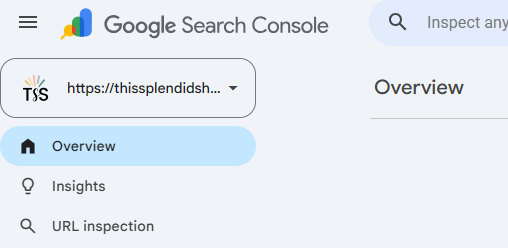
2. In the top left of your screen, you’ll see the property you’re automatically viewing when you arrive at the dashboard. For me, this is my blog. Click this.
3. You’ll then see a drop-down of your current Properties, which might just be your blog. At the bottom of this list, you’ll see ‘Add property’. Click this.

4. You used to get a screen that would just allow you to add your website, but now you’ll get a pop-up that looks like this.
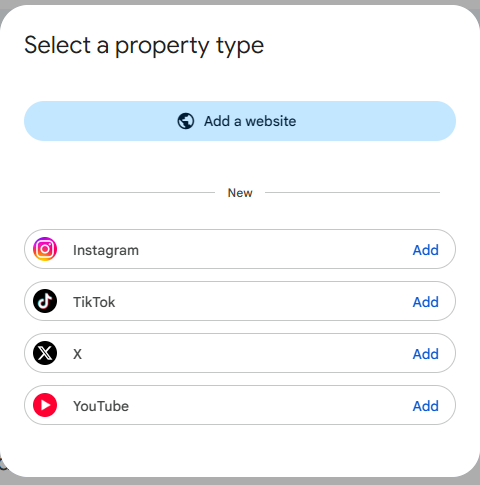
5. From here, you can click ‘Add’ on whatever platforms you’d like to set up. When you click each one, you’ll need to accept some Terms and Conditions before moving on.

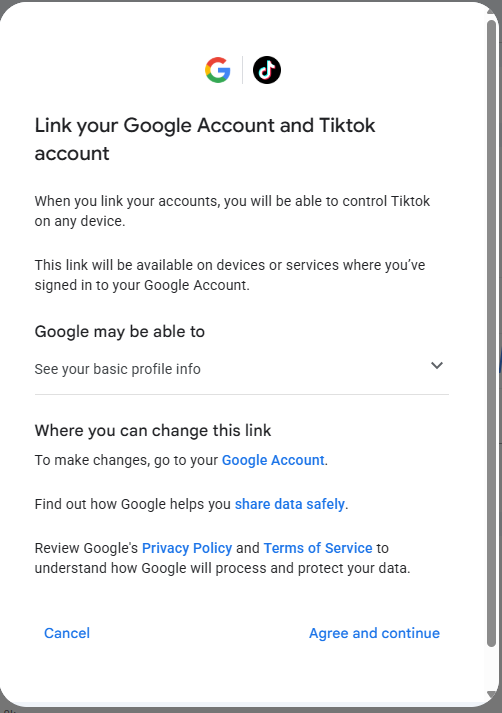

6. Once that’s done, a pop-up window will appear prompting you to log into whatever account you’d like to add. For example, I added my @thissplendidshambles Instagram account, so I needed to log into Instagram.
7. It will then take up to 48 hours to connect and start gathering the data for you. Note: It took far less time than this for mine to connect.
Insights Dashboard for new Google Search Console Properties
As your blog is going to be a lot more detailed and complex (for want of a better word) than your TikTok, for example, there are some simplified stats and data that you’ll be able to see. You can find Insights on the left-hand side of your dashboard, along with Performance, Achievements and Settings.
👉🏻 Note: The screenshots below are taken just a few days after I initially set mine up, so the stats are very low. But I want to share them now to show you what to expect. I’m also going to be showing you my Instagram, but the other platforms look the same.
Overall Clicks
On your Insights dashboard for your social media property, you’ll see some boxes, just like you would for your blog or website.
The first one is Overall Clicks, and this is a graph showing you how many times people have clicked your content when they’ve come up in Google search results, over the particular time period that you’re looking at (you can change it at the top – I think automatically it’s Last 28 Days).

Web search
Then under that you’ll see Web search and this shows you how many of the Overall Clicks have come from a Web search, as opposed to Image Search or Video search etc. So you can see the 4 of the 5 hits on my Instagram account have come from a simple Web search.
Other traffic sources
Next to this box is another one called Other traffic searches, which will, presumably, be populated with other types of searches once people start using them and GSC starts tracking them. Right now, it shows me that 1 of my 5 clicks was from specifically a Video search.
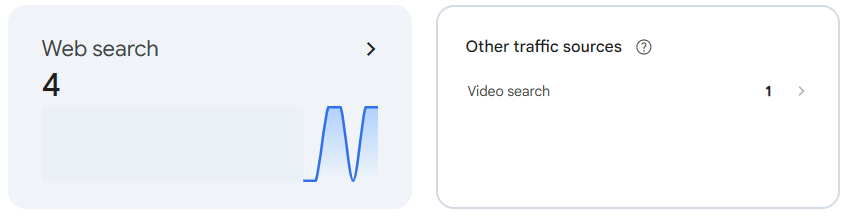
Web search performance insights
Under that, you’ll have a breakdown of Your content. This is much like you’d see on the blog or website dashboard. You’ll be able to see a quick overview of the Top posts, the posts Trending Up and those Trending Down.
As this is really new at the time of taking these screenshots, I had these 4 Reels in top and Trending Up, but nothing in Trending Down, as to be expected. You can also View More, which will take you to another page to fully see the breakdown.
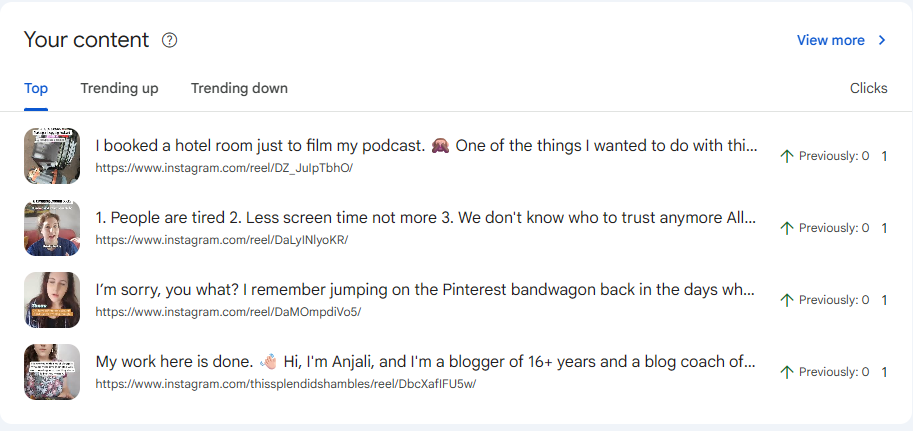
Queries leading to your Instagram content
My table here for Queries leading to your Instagram content is currently empty at the time of this blog post, but this is going to show you different search terms that people have been putting into Google and finding your account or posts during the time period that you’ve selected.
Again, this is going to show Top, Trending Up, and Trending Down. You can also View More and see a further breakdown.
Top countries
Inside your social media, you’ll be able to see your stats from where in the world followers and viewers are seeing your content from. It’s the same here on the GSC dashboard. You’ll be able to see Top countries, which will be gathered from the search results.
Remember this is still within the confines of a) the number of clicks and where they’re coming from and also b) the time period you’ve selected.
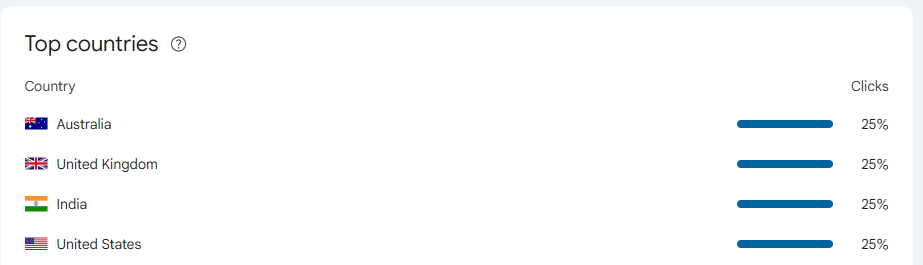
Performance Dashboard for new Google Search Console Properties
The other tab on the left-hand side that you can click (just like for your blog or website) is the Performance tab. There are a bunch of different things in here, so I won’t go into them in super detail, but just so you get an idea of what you can find, here are the main things to look out for.
Something worth noting: GSC has a 24-hour filter on the Performance report. So if you post something today, you can check back tomorrow and see whether it’s already picking up search traction. It’s a quick check on whether a new post is landing with people – and it’s useful for deciding fast whether to cross-post it somewhere else while the momentum’s there.
Performance graph
The top of the page has a Performance graph, which shows you that aforementioned number of clicks in a graph, so you can see when in time they were clicked. You can change what you’re viewing, but the default is a two-line graph which shows you the Clicks and the Impressions in comparison. You can toggle these on or off.
So you can see that even though I only had 4 clicks, I had 2.23k impressions.
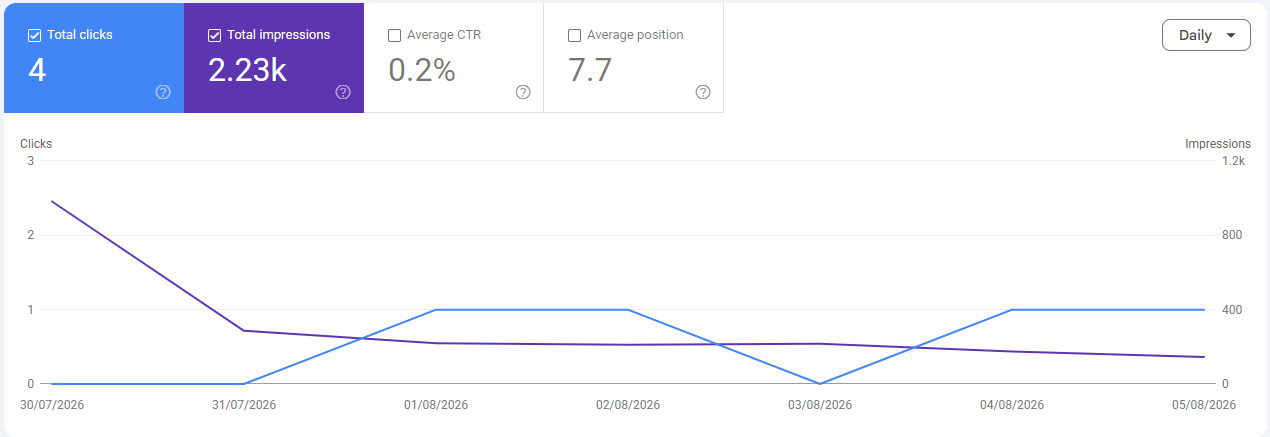
Impressions are times that a viewer saw the link to my post in search results. They didn’t click it, but they did see that it was there as an option.
You can also see Average CTR and Average Position to toggle those on and off.
Search words table
Under the graph on the Performance page, you’ll then see a table with search terms. While on the previous Insight page you’ll be able to see which words got you clicks, these ones will show you clicks and impressions, which I think is super interesting.
You can switch between Queries, Posts, Countries, Devices, Search Appearance, and Days.
Here’s a screenshot from my Posts table.
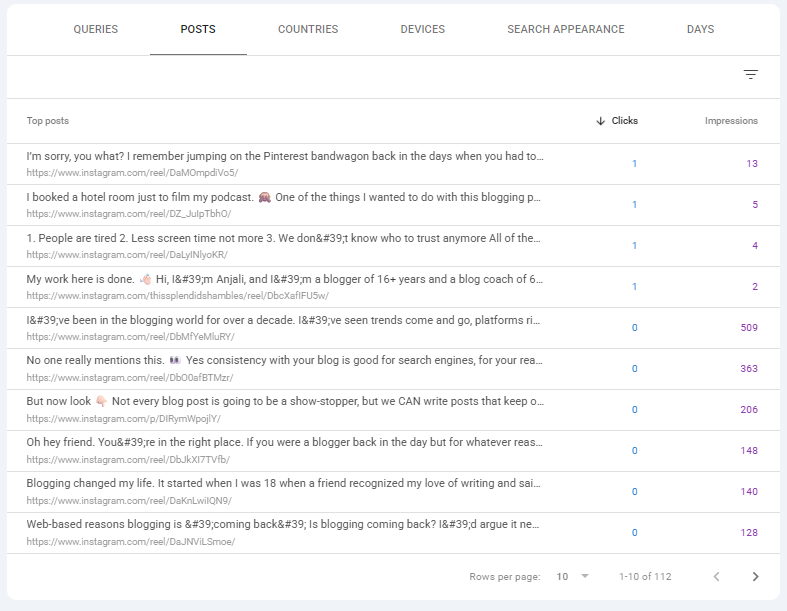
It shows me my 4 Reels that got clicks, and how many impressions they got. And then below that, all the posts from my Instagram account that have been seen by people in the search results, but they didn’t click.
This is so interesting to me, but I’ll get into why in a moment.
Achievements dashboard
Going back to the left-hand side menu, there’s also Achievements.
Mine is empty at the moment, but as your data continues to come in and the time goes by, you’ll be able to see some Achievements, much like you would in your blog property. These are going to be things like content progress and key milestones. It takes about a month to see this, I believe.
What to do with your GSC social media data
Okay, so now you know how to find everything, and you have an idea as to the breakdown of the dashboards. What do you actually do with the data that you’re starting to bring in from Google? What can you deduce from this?
I feel like there are lots of things you could do, but I’m going to share what I’ll be doing with mine.
1. Looking for patterns in content
First, I’ll be looking for patterns in content. Right now, I don’t have enough data in the tank to be doing this, but in a few months I might be able to see some patterns emerging.
Perhaps that’s patterns in:
- Topics that I’m talking about
- How I’m sharing the information
- Long captions on my Instagram (for example) versus shorter captions
- Longer videos vs short and snappy b-roll
And that’s going to help me create content for those platforms going forward. Yes, I can find all this information in my Instagram Insights for example, or TikTok stats etc etc buuuuut I have to say it’s going to be easier for me and how I work having all this information displayed how it’s being displayed.
A handy trick from Google’s own guide on adding social media properties: you could use the URL filter in the Performance tab to compare how different content formats are performing against each other.
On Instagram, filter URLs by /reels/ vs /p/ to see whether your Reels are outperforming your static posts in search. On YouTube, try /shorts/ vs /watch to see how your short-form stacks up against long-form. It’s a bit more advanced, but once you’ve got a few months of data in, it’ll be a useful comparison to run!
2. Looking for patterns in types of content
Likewise, I’m going to be finding patterns in the types of Content that are being found. Right now, it’s all Reels. But I wonder if Carousels are going to come into it, for example, or if I had X (I don’t) what pieces of content do better than others from a search results perspective.
I think this one might change a bit as time goes on and we can really see what kind of results are coming through in the data. It might be, for example, that Carousels are never included. At this stage, I’m unsure.
But it’s definitely something I’ll be looking for in the months to come.
3. Seeing where I can improve social SEO
The Clicks vs Impressions really interests me here.
Why did some of the posts get hundreds of Impressions but no clicks? What is it about those search words or the intention of the searcher that Google has given them my post as an option to answer their query, but they actually haven’t clicked through to it?
Is there some way I can improve my captions, my text, for those posts so that they’re more search -friendly, so that they’re hitting those search terms and those Impressions are turning into Clicks?
4. Compare tweaks
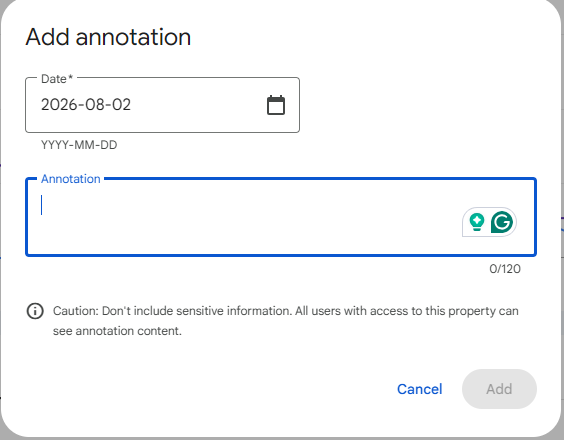
One of the features that it has is to add an Annotation. This means that you can rewrite a caption and add an annotation (which is basically like a bookmark or a point of reference) so you’ll be able to see whether a change in the content made a change in the reach and traffic you’re getting to that post.
No obviously you wouldn’t be changing for the sake of changing, but if I did decide to change something and I wanted to track whether it made a difference, this is a great way to track those tweaks.
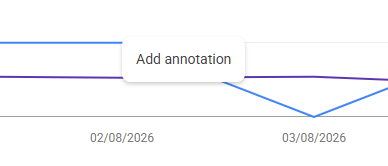
How to add an Annotation: In the Performance tab, right-click on a point in your graph and select Add Annotation. You’ll then get a screen like this which you add your note.
What’s next for Google Search Console social media
I would love to see other platforms like Facebook and Threads added into this, though there may be restrictions around that; I’m not sure.
I’m interested to see what all these tables and stats look like in 3 months, 6 months, a year later, and what information I can gather from them.
For you, right now, I highly recommend you get your GSC social media accounts claimed so you can start seeing some of these stats. Even if you do nothing but look at them, it’s still going to be a great way to get a feel for what content you’re putting out there is going well on Google and which isn’t.
It’s up to you what you do with that information as a blogger or business owner, but I hope this blog post has been helpful and you’ve got some ideas in the tank!
I’d love to hear from you! Have you already claimed your socials?
What are your thoughts about it all so far? Drop it below!

Questions about Google Search Console social media properties that you’re probs asking
What social media platforms can I add to Google Search Console?
As of July 2026, you can add Instagram, TikTok, X, and YouTube as properties in Google Search Console. Facebook and Threads aren’t currently supported, though that may change.
How long does it take for data to show up after connecting a social media property?
Google says up to 48 hours, but it’s often faster than that. You should start to see data from your accounts within about a day after connecting your platform.
Is Google Search Console free to use?
Yes – Google Search Console is completely free. You just need a Google account to access it.
What’s the difference between clicks and impressions in Google Search Console?
An impression is counted when your post appears in Google search results, even if the person doesn’t click on it. A click is when they actually tap or click through to your content. The difference is in your click-through rate (CTR), and looking at posts with high impressions but low clicks is a good way to spot content that might benefit from a caption or title tweak.
Can I see data from all my social platforms in one view in Google Search Console?
Not quite – each platform property has its own dashboard, so you’d need to switch between them to compare. You can export the data from each property and compare it manually, which is worth doing once you’ve got a few months of data to look at.
Does this replace Instagram Insights or TikTok analytics?
No. GSC shows you specifically how people find your content through Google Search. Your native platform analytics show you what happens once they’re on the platform – likes, follows, watch time, etc. They’re complementary tools, not the same thing.

Anjali Kay
Anjali Kay is an Aotearoa New Zealand-based blogger and book lover sharing travel inspiration, bookish posts, the occasional creative project, and a lot of practical blogging tips here at This Splendid Shambles. Based in Auckland, she's been writing book reviews and travel posts, sharing creative projects and blogging tips since she started her first blog in 2009. When she's not working on her own blog, Anjali also offers blog coaching and support for bloggers who want real guidance from someone who's actually done the work, and is a few chapters ahead of them.


Having fun? Check out these posts!

The Fastest Blog Posts to Write (Perfect when you’re in a time crunch!)

Advice for When Your Blog Feels Like an Online Diary
