
The Ultimate Review of The StoryGraph
Last updated on 29 June 2026
This post may contain affiliate links. If you make a purchase with one of these links, I recieve a small commission at no additional cost to you. Read the full Affiliate Policy.

“Like Goodreads, but with graphs!” – my friend
I was sold. If you’re a reader who’s always looking for new books to read, loves tracking your books, and setting Reading Challenges, then chances are you use Goodreads. However, in recent years a new player has entered the scene, The StoryGraph.
So I knew that I wanted to check it out and fully utilise everything it had on offer for me, a bookish gal. I’ve spent months on the platform now, and I’m going to give you a full review of The StoryGraph.
We’ll take a deep dive into the platform and explore its features, design, and functionality, to help you decide if it’s the right choice for you (or if you might use it alongside Goodreads). We won’t compare it to Goodreads too much in this post, but you can check out my The StoryGraph Vs Goodreads post here and learn how I use the two together.
Whether you’re a casual reader or a bookworm, this StoryGraph review will provide you with all the information you need to make an informed decision about whether The StoryGraph is the right platform for you. Hopefully. And if not, I tried!
Let’s get into it!
👉🏻 Note: This review will be looking mostly at the website version of The StoryGraph, so the app may be slightly different. We will also take a look at the app near the end of this review.
What is The StoryGraph?
The StoryGraph is a platform that allows users to discover and track books, much like Goodreads (but better!).
How is it different to Goodreads?
It’s not. Not really. Not on the surface. It’s a book-tracking platform that allows you to do the same things as Goodreads. However! It goes above and beyond Goodreads in some really stunning ways.
👉🏻 The StoryGraph vs Goodreads: What You Need to Know about Changing Book Tracking App

The StoryGraph Review – Starting out
Get ready, we’re going into the nitty-gritty of The StoryGraph! I’ve broken up all the parts of the platform so we can dive into the pros and cons of each, and I’ll give my honest thoughts on them.
The StoryGraph before you have an account
When you first arrive at The StoryGraph website you’re greeted with a beautiful teal green banner, with books and a welcome message. I already love it more than the Goodreads brown. But I gotta stop comparing. Stop me doing that!
Scrolling down, you’re introduced to the platform in some really simple ways:
- Simple tracking and insightful stats
- Get smart personalised recommendations
- Discover books by mood
- Read with friends
- A fully-featured Amazon-free alternative to Goodreads
- Frequently asked questions
And honestly? Everything they lay out in these different sections makes me want to sign up. The promise of getting recommendations, discovering books by mood (ohmygoodness fun!), and the ability to read with friends, like a book club! *goes to sign up immediately*

Creating a StoryGraph Account
Creating a StoryGraph account is a simple process that can be done in a few easy steps:
- Go to The StoryGraph website and click on the “Sign Up” button on the top right corner of the homepage.
- Fill out the registration form by providing your email address and creating a password. You can also sign up using your Google or Apple account.
- Verify your email address by clicking on the link sent to your email.
- Once you have verified your email address, you will be logged in to your new StoryGraph account.
- Now you can start adding books, creating shelves, and exploring the features of the platform. You can also import your books from other reading platforms like Goodreads by going to your settings and selecting “import” option.
- Enjoy using StoryGgraph and discover new books, track your reading and connect with other readers!
First Impressions of The StoryGraph
As soon as you land on the website, you’ll notice the clean and modern design, and that pulls through to when you’re logged in, too. When I first checked out The StoryGraph I had to get my head around the different feel of the website, as it’s much cleaner than Goodreads, which I’m most familiar with.
A quick click through some of the pages, I can see that it’s already going to be a lot of fun, and a lot more informative and personalised to my reading and about my reading than other book apps and sites. The stats page alone is enough to sign up.

The home page
The home page has several different sections on it.
To-Read Pile
Starting at the top, you’re shown your To-Read Pile and a selection of books from that shelf. These, I’ve noticed, aren’t in the order that you’ve added them, although I did import my books from Goodreads, so they all were technically added at the same time. So that might not be quite right.
You can Search and Filter your TBR, too, and when you click that you’ll find another page with all your To-Read books. You can also add up to 5 books to your queue, indicating what books you’re planning to read next. This is a fun feature, but not one that I see myself using, as, while I have a general idea of what I’m reading next, things change quickly around here. Ha.
Below this, you’ll find all your books in your TBR pile, which you can use the tools to filter through. Use the filter tool to search by:
- Mood
- Pace
- Type
- Genre
- Tags
- Page Count
- Original publication year
- Books that you own
You can also exclude books too. Eg Include any Fantasy, Romance, or Sci-Fiction, but Exclude Historical and Horror.

Recommendations
Back on the home page, the next box down is Recommendations. It will give you a short list of books (in Book Cover display) that it thinks you might like, but you can also click “Explore”.
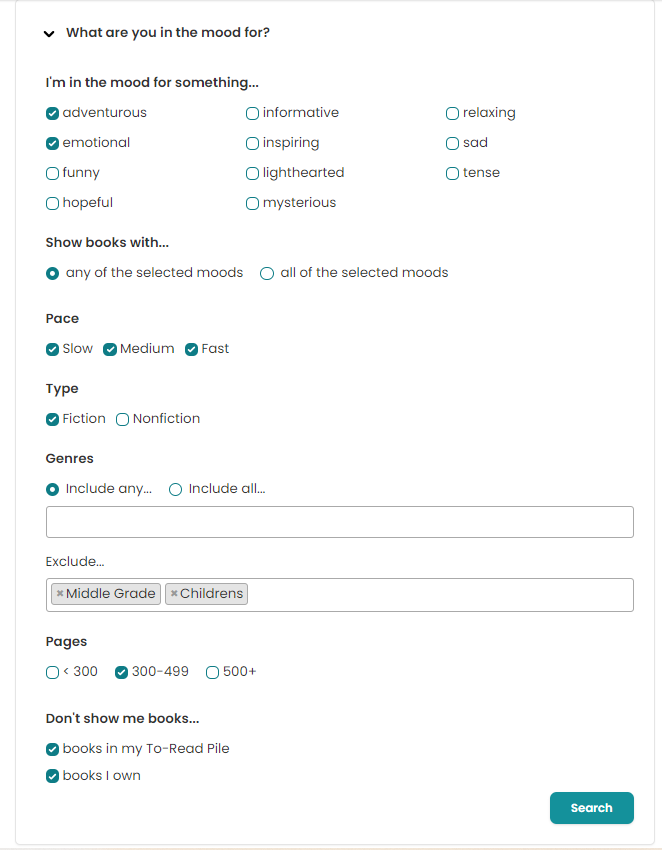
When you arrive on the Explore Page of StoryGraph, you’re greeted by that increasingly familiar way to filter the books you’d like to find. There’s a drop-down filter again, and it also has:
- Mood
- Pace
- Type
- Genre
- Tags
- Page Count
- Original publication year
- Books that you own
This is a brilliant addition to a Recommendations list. It really lets you narrow down your search more, and you’re more likely to discover books you actually want to read.
I found that on Goodreads, the Recommendations were also terrible. They were fantasy novels from the 60s which I probably never read, or they were so far away from what I actually wanted to read, that I never even bothered ‘exploring’ on Goodreads at all.
Here’s an example of a search I did to see what I would be Recommended:
And here are some of the books it recommended I check out:


While not all of the books that they recommended were going to be goers for me, there were some that actually sounded good I added to my TBR list (like I need any more ha!).
I can see myself using this in the future, though probably not all the time as the last thing I need is yet more books to read.
Giveaways
We’ll go through this more later one, but here on the homepage, there’s a selection of books that are currently available to win.
Currently Reading
To the right of all the above is a list of your Currently Reading books, without the book covers. I think I prefer to have the book covers there, too, and also an indication of where I’m up to in the book. You can then click a button to ‘View all’.
Popular this week
And below Currently Reading is a box called Popular this Week. I do like this though. This will be updated weekly with what books are currently being read by people, over others. You can then click ‘Browse’ and you’ll be taken to a page with all the books on the site.
You can then use the same filters to sort out what you’re seeing:
- Mood
- Pace
- Type
- Genre
- Tags
- Page Count
- Original publication year
- Not in your TBR, you own, aren’t currently part of a series
Then you can sort them by:
- Popular this week
- Last updated
- Pages: Low to High
- Pages: High to Low
- Pub Date: Earliest First
- Pub Date: Latest First
It’s displayed in one long list, but I think it would be nice to have the option to change up the view format. Perhaps in a grid or columns or something.
Searching for a book
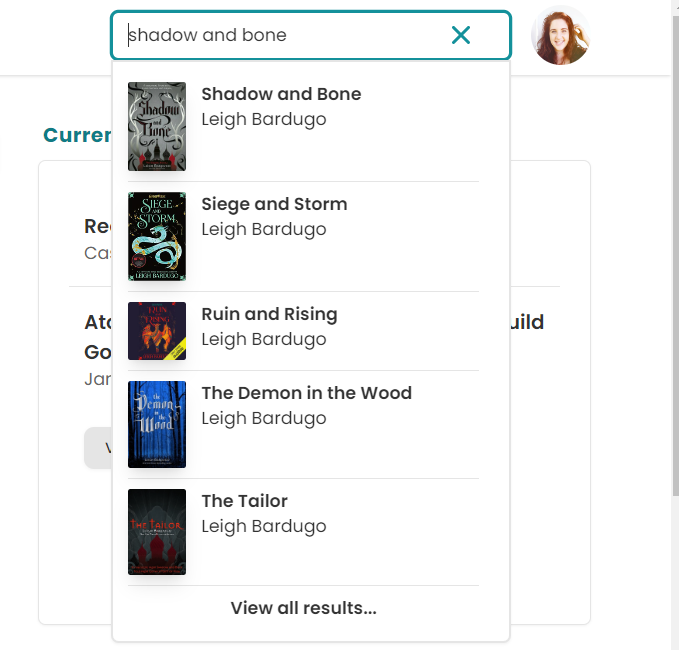
You can search for a book on The StoryGraph from any page you’re on. When you start typing in your book title, it will produce a dropdown menu with some book ideas that fit your search. This changes the more you type, as a usual search would.
💡 December 2023 update: You can also use the Barcode Scanner to search for a book. From any page on the app (you need your phone to do this!), you can click the barcode in the Search bar to then scan a book. Why would you do this, you ask? Well, you could scan a book if you’re in a bookstore and want to look into the book more but can’t be bothered typing in the title (been there!), or you might like to scan your entire library into the app so you can keep track of it. It’s super handy!
You can search for a book by title and author, though it didn’t do so well when I searched for a series name. It gave me a book or two when I searched for a series that also happened to be the name of the first book (Shadow and Bone, for example), but not when I put in ‘Grishaverse’.
When you spot the book you’re looking for you can click it and head to the book page (more on that soon), but you can also select ‘View all books’ at the bottom of the drop-down. This takes you to a full search page, where you can see all the search result in one page, which has an endless scroll.
A note on the search results for a single book
Here’s what the search result for a book looks like, no matter where you are on The StoryGraph:

As you can see, it has all the information you immediately need to know about the book.
- Book cover
- Name of book
- Author
- Page count
- Publication date
- Option to see other editions
- Your star rating if you’ve read it
- A button to see your review if you’ve written one
- The tags that the book community on The StoryGraph has given it
- When you finished reading it
- What shelf you’ve put it on (read, to-read, currently reading, did not finish) and the option to remove the book
- Marked as own button and a buy button
This is a good amount of immediate information, I think, and it’s similar to other book apps and sites. It’s a quick snapshot of the book, without cluttering up the info too much. Then you can click into the book and check out further details.
Book Page
The single book page on The StoryGraph is really well laid out (below). Again, it’s really clean and crisp, and you can easily navigate around it.
Book details
On the left, you’ll see the book cover, and below that, the reviews from other people you follow. In my example here, you’ll see that my friend Sophie from SofillyLetters has given this book a 3-star review.
In the centre of the single book page, you’ll find all the details, as listed in the search results but expanded a bit more. Things such as Title, Author, pages, your review, the tags, the description of the book, community review summary, including some really epic breakdowns.

Community Reviews
This is one of my favourite parts of The StoryGraph: all the details that the community can add to their reviews, and ultimately to overall reviews of the book. Having this ability is perfect if you’d like to know as much about the book as possible people picking it up.
In the Community Reviews box (see above) you’ll find:
- Moods
- Pace
- Plot – or character-driven?
- Strong character development?
- Loveable characters?
- Diverse cast of characters?
- Flaws of characters a main focus?
- Average rating
It’s so fun to see how other readers around the world see each book. If you’re not one for character-driven stories, you’ll be able to see what others think. Don’t like emotional stories? You’ll see that under mood, too. If you love a book with lovable characters – again, the readers of the world have let you know in these reviews all about it.
The only thing that I would say is that I’d prefer to have the Average Rating further at the top of this single book page. I want to know right at the beginning what the average rating was, and not have to go looking for it.
👉🏻 Want to learn how to write engaging book reviews? Check out this guide.
Content Warnings
At the bottom of the page, there’s a box with Content Warnings. These are also tagged and listed by the community, and you can click the drop-down to see what they think are the content warnings. There are multiple levels of warnings: Graphic, Moderate and Minor, and under each, there are things such as war, death of a parent, sexual content, drug use etc.
If you click ‘See All’, you’ll be able to see all the User-Submitted content warnings, and also any that the author has provided, called ‘Author-approved’ Content Warnings.
You’ll also notice that there are some of the same tags across the levels of Content Warnings. This is because what Jane thinks is a Graphic topic might only be a Moderate topic to Sally. Remember, these are user-generated Content Warnings, so they’re good for getting an overall sense of the Content Warnings, but still tread lightly.
 Track Progress
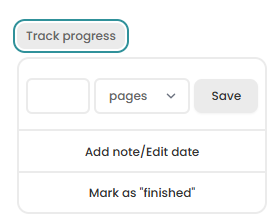 Track Progress
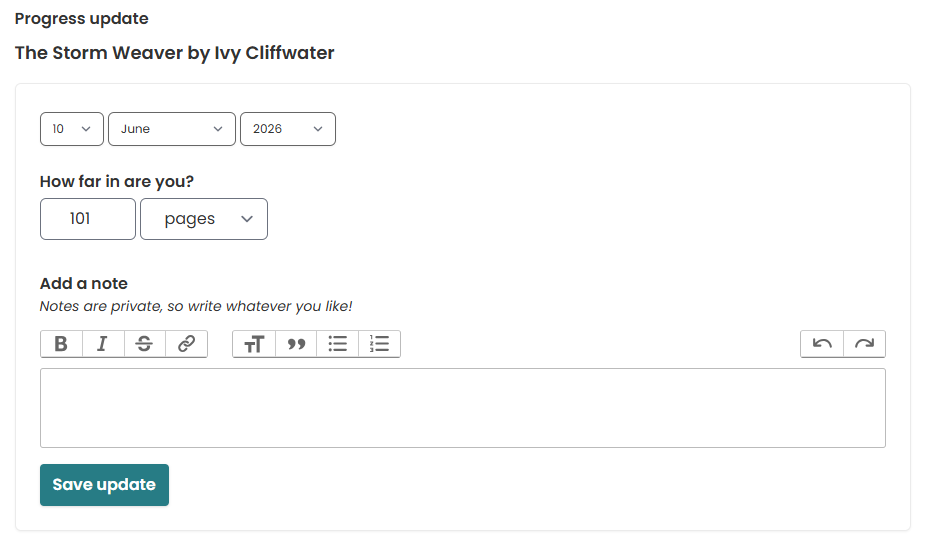
In the top right of this page (and also on the home page where you can see what you’re currently reading), you’ll see that you’re able to Track Progress. And here is where you can add a page count where you’re up to on what date, and also add a Note.
Notes are private, just for your eyes, so you can jot down things you were feeling while reading it, or quick fire thoughts to come back to when you write your public-facing review.
Account and Profile Information
In the top right-hand corner of your home page, you’ll see the avatar of your beautiful face (or just a grey generic one if you haven’t uploaded an image). If you click that and look at the dropdown, you’ll discover a couple of pages. We’ll go through these now.
Profile page
Your StoryGraph profile page is, like the rest of the site, clean. When StoryGraph was first on my radar, the Profile Page didn’t quite offer as much personalisation as Goodreads did (with Bio and Links) but over time they’ve added that in. (Yay!)
At the top of your Profile, you’ll see your Username and your Image if you’ve attached one. You can now also add your Pronouns, some links to your social media or blog (I have Instagram, Threads and the blog), and a short Bio (up to 160 characters). This was added in later, and I think it’s a fantastic addition.
To the right, you’ll find the new (Sep 2025) Favorites shelf, and below these are Currently Reading and a paragraph about your Reading Habits. For example, my box read: ‘Mainly reads fiction books that are adventurous, mysterious, and emotional. Typically chooses medium-paced books that are 300-499 pages long‘.
This is a nice touch and it is cool how it will change and adjust over time as your reading changes and adjusts, but it doesn’t give someone visiting my profile to know who I am as a person, just a reader.

September 2025 update: In September 2025, StoryGraph added Favorites shelf, which now sits to the right. I really like this new feature!
You can either add books to your Favorites list via the book itself (search for the book, then to the right you can ‘Add to favorites’) or you can click into Favorites and use the search bar to search and add your faves.
You can ‘pin’ 5 of your favourites to the shelf, and those 5 will appear on the actual shelf on your bio, as below (look how cute it is!). You can have a lot more favourites (as many of us will!), and you can swap out which ones are shown on the shelf.
If the shelf is empty, the brown shelf is still there, and on the far right-hand side, there is a little pot plant. So cute!

Below those boxes are Read Recently, To-Read Pile, a box showcasing some books you’ve given 5-stars to, and a list of some of your Owned Books. Below that is a list of all your Tags, and then your Reading Challenge at the bottom.
Each of these boxes or sections that I’ve mentioned also has buttons below them for further details. For example, under the Currently Reading box, you can click ‘View All’ and also ‘Reading Journal’ which is where your updates for any books or activity on The StoryGraph are listed.

Notifications
These are Notifications from The StroyGraph and include things such as updates to the website/app, when your Reading Wrap-Up is ready for you at the end of the year, Giveaways that are running and other things that they deem important to tell us about.
This is a handy way to go back and find information and also things like re-discovering your wrap-up of the year and similar features.
Manage Account
Here is where you can manage your account. Surprise surprise. You can update your email, username, and profile photo, change the privacy of your account (Public or Private or Community), change your password, upgrade to The StoryGraph Plus, import your Goodreads lists, and Manage your Data by deleting shelves or your entire account. Tread carefully!
Privacy Levels in StoryGraph
There are three levels of Privacy in StoryGraph:
- Private: Only your friends will have access to your profile pages and reading activity. Others will only see your username and profile picture. You will not be searchable through your username or email on the Community page, and you won’t appear on the public News Feed unless you have friends. However, your reviews will still be visible on book pages.
- Community: People can only view your profile pages if they are signed in to The StoryGraph.
- Public: Anyone can view your profile pages. They don’t need to have a StoryGraph account.
Preferences
In the Preferences section, you’ll be able to set preferences, and there are quite a few options you can customise to what you’d like your StorygGraph to look like and how it should function.
It’s broken up into two sections: General and Community.
General
- Timezone: Change the timezone to your own
- Theme: Change the theme of your StoryGraph to System, Light or Dark
- Languages: Switch the language
- Audiobook Tracking: Here you can change how your audiobooks are tracked, either in minutes or in pages. I believe by default it’s minutes, but if you’d prefer to have your stats show how many minutes you’ve listened to books, you can switch it here. Note: Change the toggle will affect future audiobook, but they also give you the option to convert already logged audiobooks from minutes to pages, or from pages to minutes.
I really like the idea of changing the audiobook tracking! I’ve changed mine to minutes to see what it’s like.
Community
- Following: Change who can follow you and see your reading updates in their news feed
- Friends: Change who can send you a friend request
- Buddy reads: Change who can invite you to take part in a buddy read (Nobody, Friends, Friends & People I Know, Anybody)
Review of The StoryGraph Features
There are so many cool features, and I’m going to go over as many as I can find for you in this part of my review of The StoryGraph. These are, of course, different to all the things we’ve already talked about in this blog post.
Stats
Stats on The StoryGraph are the reason we’re all here to begin with, right? Right. And it’s all in the name. They really shine through in their graphs and stats pages, and I’m most excited by this in the whole website.
When you select Stats from the top menu on StoryGraph, you’ll get a simple page (sensing a theme here?), which has a string of different boxes, providing you with differing stats for your account. Let’s go through them now.

Your reading stats
Right at the top you have a box which you can change to determine what you’re going to see on the rest of your Stats page. By default, it’s set to the current year, so that’s what we’ll look at for this section. You can, however, change to see what you were reading in 2018, 2020, or whenever. As long as you have books logged for those years, you can see them.
You can also compare two time periods if you have the Plus plan of StoryGraph.
Reading Goal
Below that is the current year’s Reading Goal. If you have set a reading goal for the year, it will show up here and also give you a simple bar with how far along your goal you currently are. This is where updating your reading is really important. You can also click the number of books you’ve read and you’ll be able to see which ones they are. And you can also edit your goal from here too.
Contents – Read Books
And here’s the really fun part!
The rest of the Stats page is the actual graphs and stats of your reading. At the top of this part you’ll be able to see a Contents box which has a dropdown menu, and this just allows you to quickly jump to that graph. Remember this is going to show you the stats for whatever year or month you selected at the very top of the Stats page.
Let’s look at a breakdown of these graphs.
💡 Note: If you hover over any of the graphs, you’ll be able to see how many books that is for each segment or piece of the pie. If you click the pie segment, you’ll be take to a page that shows you those books and your reviews.

Read: First up, not a graph but a box which just reminds you how many books you’ve read in that time period, how many pages that is and how many minutes (if you’ve selected to show your audiobooks in minutes and not pages).
Moods: The Mood graph depicts what the book was of the books that you’ve read. These are based on the tags that you’ve given it and that other people have given it. This is such a fun way to see what kinds of books you’re usually reading and if you need to branch out a little bit, too. 😉


Pace: Sometimes a book will move quite rapidly through the story, and other times it a slow burn. And some sit quite happily in the middle. Part of StoryGraph’s features is that you can set what you think the pace of the book is after you’ve finished reading it. This graph show you the number of books you’ve read that have been tagged with Face, Slow and Medium pace.
Page Number: This graph shows the number of pages your books have had. They’ll be broken up into sections such as <300, 300-499, and 500+. Or whatever your books have been, page count-wise. This is such a good graph to really get a feel for the length of books you tend to sway towards. Remember, if you haven’t set your audiobook to track the minutes, then the pages will show up here too.
Audiobook length: If you have your Audiobook tracking set to track the minutes, then this graph is going to show you those books and their length. My Audiobook length for 2023 when writing this review in February showed that I had listened only to books that were less than 8 hours in length.
However, when I switched to my 2022 view of the same graph, it gave me a section that was over 16 hours per audiobook too. This isn’t actually an accurate depiction of my audiobook reading in 2022, as I imported my Goodreads in maybe October ish and then promptly forgot to actually update the platform the rest of the year, where I would have listed to more audiobooks. Learn from me!
Fiction/Nonfiction: If you read a mix of fiction and nonfiction, this is the graph that will give you that breakdown. As I’ve only read fiction so far in 2023, that’s all it’s showing me. I want to read more nonfiction this year, so hopefully, by the end of the year, this graph will be a little more colourful.
Genres: One of my favourite graphs in the selection is the Genre graph. Showed in a bar graph, rather than a pie chart, the Genres graph shows you how many books you’ve read that sit in a particular genre. As most books will be logged across multiple genres, this isn’t going to show each individual book in just one part of the bar chart.
This chart shows 23 books across the genres, but at this stage in 2023, I’d only read 9. But those 9 books sit across multiple genres, hence the graph.

Tags: Tags sort of act like Shelves in Goodreads. These tags are what you have tagged your books as. If you’ve tagged them with something like ‘Netgalley’ or ‘Read in Feb’ or whatever you’ve decided to tag your books with. This section is only visible to you.
Format: This shows how many Print, Digital and Audiobooks you’ve read in this time period. I really like this! I’m always careful to choose a digital copy if I’ve read it on my Kindle or on Libby, but I do get slack sometimes. Having it available in a chart like this is really going to help me choose the actual edition I read rather than just saying I read the book, any version of it.
Most read authors: If you’ve read more than one book by the same author in the time period, it’ll show up here in a bar graph. It doesn’t show every author you’ve read, only if you’ve read a series or multiple books by that author.
As I’d only read 3 Jenny Han books in 2023 when writing this review, it only showed Jenny Han as an author. But here’s my 2021 graph. As you can see, it’s much more detailed. As you can guess from this graph, I read 2 books from all these authors in 2021.

Languages: If you’ve read any books, not in your chosen language, it will show up here. If you haven’t, then it will display a message that reads “All books in this time period are in English”, for example.
Number of books, pages, and minutes: A plotted graph comes next, and this indicates the number of books, pages and minutes that you read in the time period. If you’ve updated your reading throughout the year, it will show each line in a different colour, marking the number of books on the left, pages/minutes on the right, and the months at the bottom. This one is from 2022.

Star Ratings: A bar graph showing the stars you’ve given books across the time period. It shows the number of book on the left and then the stars at the bottom. This is an interesting one not only because it’s fun to see, but also because Goodreads doesn’t do half stars, but StoryGraph does, so any books you’ve imported from Goodreads will just be shown as full stars, and if you’ve updated a book on StoryGraph as a half or quarter star, that will show here in the future.

Monthly Wrap-Up Charts
In July 2024, StoryGraph released Monthly Wrap-Up charts. When you’re viewing a month’s stats (as above), below you’ll see a button that says ‘View Monthly Wrap-Up Graphics’. And then when you click that and give it a moment to generate, you see something like this.

And the thing I LOVE about this is that it’s immediately social-media friendly. You can download the StoryGraph Monthly Wrap-Up to your phone and share it online.
So here we have my username and the month at the top, and then the number of books, pages, hours and average rating.
Next is the rating order of the top 3 books for the month, and below that we’ve got the average book length and average time to finish a book. Now just a disclaimer: Usually I read a book in a week. but ACOSF took a bit longer, and I had to renew Dungeons and Drama twice (oops) on the Libby app because I keep forgetting to read it.
But moving along!
Next you have a pie chart which would show whether the books you read that month were fiction or non-fiction (in my case, all fiction for July 2024), and also the genres that they sit in, in a bar graph. Remember from previously, this looks like I’ve read 10 books but each book (5) will sit under multiple genres, so it looks at all the genres, not each book.
At the bottom, to wrap up the Wrap-Up, we have a graph showing the pages read/minutes listened and on which day of the month, and then to the right we have the pie chart showing audio and digital. And I must have actually logged ACOSF incorrectly as that was a physical book.
Overall Thoughts on the StoryGraph Monthly Wrap-Up
I love love love this. I was talking with a friend recently, in the lead-up to this release, about another bookish app that gives you graphics like this. And here StoryGraph is, stepping up the game!
I can’t wait to share my monthly wraps with my Instagram squad!
Reading Challenges
Back up to the top menu, the third along is Reading Challenge. Much like Goodreads, you can set yourself a challenge or a goal for the year. Here’s where you’ll be able to see how you’re doing.
There’s a bar that runs along the page to show where you’re up to, and you can also click on the number of books and see what they are. It also gives you a wee message! Mine said ‘Brilliant! You are ahead by 3 books!’ when I took this screenshot. You can see it also gives you a percentage of how far through you are, and the ability to edit the goal.

Another cool thing is that you can set a page goal and an hour’s goal if you don’t want to set a book’s goal. I’ve also set a Minutes goal, which is going to count my audiobook hours listening to. So far I’d only listened to 18.2 hours, and this is also shown as a per cent and tells you how far ahead you are.
💡 February 2024 update: You can now also choose to set a prompt challenge, rather than a number of books challenge. This might look like ‘3 Book set in New Zealand’ or ‘A book with a blue cover’ etc. You can choose to do these challenges with other people.
Community
Think of the Community Page like the Goodreads home feed, almost. It’s where you can see what your friends and people you follow are reading and any updates they’ve given.
You can search the community by their username at the top, see who you’re following on the right, get all the updates to the left, and find similar users, too.

If you click ‘All Updates’ to the far right, you’ll see everyone on StoryGraphs’ updates. These aren’t people you’re following, it’s literally everyone. But you can toggle to just see profiles that are ‘Similar to you’, and when I did this, it showed me some of the profiles that have similar books on their shelves or who have read books I’ve read, etc.
Here you can all choose to see just what the people you follow are reading and their updates. See below.

April 2024 update: In April 2024, with the release of StoryGraph Book Clubs, they revamped the Community page. It’s now a lot better, and I’m pleased that they did. This older version was laborious to get to, it wasn’t intuitive to find things, but now you can see a menu within the Community page which has a bunch of different tabs, making it super easy to get around.
Here’s an example, with the Book Clubs tab open (and empty haha). But it’s much clearer now.

Book Clubs
Speaking of Book Clubs! In April 2024, StoryGraph released a new feature called Book Clubs. This is such a fun new feature, and while I don’t have much myself to run a book club, it’s definitely something that I would love to do in the future.
There are tons of online book clubs out there, but I think having it in a place where we already hang out is so much better than having to sign up for yet another site or platform.
👉🏻 Check out all my thoughts and a big rundown of the Book Clubs here.
Buddy Reading
On the Community Page, you can also find a button called Buddy Reading. This is a feature I can get behind!
When you’re looking at books on StoryGraph, you can choose to start a Buddy Read. You can have up to 8 people in a Buddy Read and if you are currently in a Buddy Read, those details will appear on this page.
💡 Note: If you have the Plus plan you can also have the platform suggest a book for your Buddy Read, which is quite fun.

How to start a Buddy Read on StoryGraph
- Find any book on StoryGraph that you’d like to Buddy Read with someone/a group of people
- On the book’s page, you’ll spot a link to the right (under your review section) which says ‘Start a buddy read’
- Click that and you’ll find a page where you can input all the details about the Buddy Read.
- Description: ‘Use this space to add any extra details about your buddy read, including start date, suggested checkpoints, links to additional resources, and any other logistics.”
- Reading buddies: Use the Suggestions or enter the usernames of the people you want to invite to the Buddy Read
- End Date: Set an optional End Date. This would be perfect for book clubs!
- Once you’ve entered the details you want, you click ‘Create’ and your friends will be sent a notification to join the Buddy Read
👉🏻 Check out this full breakdown of StoryGraph Buddy Reads.
Readalongs
A new (December 2023) feature is the StoryGraph Readalongs feature. This is sort of like the Buddy Reads system but think more book club. 1000 people can join in on a Readalong on StoryGraph, and you can either host one yourself or join hundreds of others.
👉🏻 Check out this deep dive into the StoryGraph Readalongs.
Giveaways
The final item in the main top menu is Giveaways. Here you’ll discover Giveaways happening on StoryGraph, and details as to how you can enter to win.
At the top of the page, there are suggestions of Giveaways that you might like, based on the books you’ve read and shelved. There’s also a note which reads ‘For better results, add more detail to your reading preferences survey.’
Next box down there’s a way to filter the Giveaways, which is really handy. You can filter by:
- Mood
- Pace
- Type
- Genres
- Pages
- Print format
- What country you live in
- Featured or All
When you head into a Giveaway, you’ll see all the details for the book, as well as info about the author and the giveaway, and how to enter. Make sure you check to see if the winner can be from your country.
If you’re an author or a publisher and you’d like to submit a book to a giveaway, there’s a place you can do that, too.
The StoryGraph Plus

If the features on The StoryGraph free aren’t enough, you can also sign up for The StoryGraph Plus. This will give you some other options for your book tracking, many of which I have pointed out along the way in this review.
You can also trial Plus for 30 days to see if it’s for you.
One of the coolest features, in my opinion, is that you can create your own graphs! Whether you like a pie chart or a bar graph, there are lots of ways that you could use these cusomitsedable graphs for your own data and interest. Here are some that community members have made.
What you get with StoryGraph Plus
- Custom charts: Like the ones I’ve just mentioned!
- Extra stats filters: You can tweak your stats by choosing a timeframe, checking out stats for fiction or nonfiction reads, adding your own tags, picking specific moods or genres, and more. Plus, see how your ratings stack up across different types of books and formats.
- Compare stats: Compare different parts of your StoryGraph collection – like one year versus a custom period, your To-Read Pile versus your owned books, or mix and match other options.
- Exclusive charts: Check out year-on-year charts to see how many books you’ve read and their genres when comparing your reading between two different years.
- Shape the roadmap: Use the roadmap to comment on and also vote on future features!
- Priority Support: If you need a hand, you’ll be further up the line of priority.
You can read more about all these features here.
How much is StoryGraph Plus?
StoryGraph Plus starts at $4.99 USD per month. If you switch to an annual plan, it’s $49.99 USD for the year, saving you 2 months of payments. You can also choose between USD, GBP, and EUR.
The StoryGraph Roadmap
I mentioned the Roadmap just above in the Plus features, but right at the bottom of the site in the Footer, you can find the Roadmap. This is amazing! By checking out this page you’re able to see all the updates and features that are currently being worked on at StoryGraph, what features have recently been released, what users have asked for, and more.

You can click into any of them and see what the chat is (and if you’re a Plus member, you can have your say), and track where the updates are up to. If you choose ‘Change Log’ at the top, you’ll also see a bunch of updates that have happened.
I’m always really impressed with companies that do this sort of thing. They are, after all, there for the people, and if your customers aren’t happy with a product then you need to be working on updating it. So many companies say they’re doing things and that updates ‘are coming’ or are ‘in the pipeline’ but you’re never able to even peek behind the scenes.
Having the Roadmap up like this for anyone to check out is a brilliant way to grow trust in a platform and for us as users to see behind the curtain of a platform like StoryGraph. Props to them, I say!
A quick StoryGraph review of the app
The StoryGraph App is pretty good! There’s a lot on there and it’s easy to use. It has pretty much the same information as the web version does (as far as I can tell), but is set up for mobile and apps.
The main menu is actually down the bottom, with Home, Stats, Community and your own Profile sitting there at the bottom in handy icons for you to access from anywhere on the app.

Conclusion to my StoryGraph Review – Overall Thoughts
I really like this platform and I think that comes across in my StoryGraph review. While there are a bunch of things that I don’t like, the benefits and features far outweigh any minor grievance I have with it. And if the Roadmap and the features they’re already beginning to add are anything to go by, then I can see it only getting better with time.
A few of my favourite (so far) features are:
- The stats, obviously
- The quarter and half-stars
- The no-fuss design of the website
A few things that I think could be sharpened up
- A few things were a bit of a rabbit-warren to find, perhaps more of a drop-down menu for some things would be handy
There are some things that I’d love to see The StoryGraph do in the future:
- Lists of like-books
- Quotes on the book pages
- Stats about your reading habits on a specific author
- The ability to add a bio or something about ME to my profile
Will it fully replace my Goodreads use? Right now, probably not.
But as I said in my StoryGraph Vs Goodreads post, that’s probably because I’m so used to Goodreads that it feels like second nature to me. However! Give it some time and I think I’ll probably switch from Goodreads to StoryGraph full-time.
I’d love to know what you think of both this StoryGraph review, and also if you’ve tried it!
Disclaimer: The StoryGraph did not ask me to write this review of The StoryGraph. I’m simply sharing my thoughts and opinions on a new platform that I am excited about.

Anjali Kay
Anjali Kay is an Aotearoa New Zealand-based blogger and book lover sharing travel inspiration, bookish posts, the occasional creative project, and a lot of practical blogging tips here at This Splendid Shambles. Based in Auckland, she's been writing book reviews and travel posts, sharing creative projects and blogging tips since she started her first blog in 2009. When she's not working on her own blog, Anjali also offers blog coaching and support for bloggers who want real guidance from someone who's actually done the work, and is a few chapters ahead of them.


Having fun? Check out these posts!

Book Haul #5…

Book Review :: The Last Magician, by Lisa Maxwell
